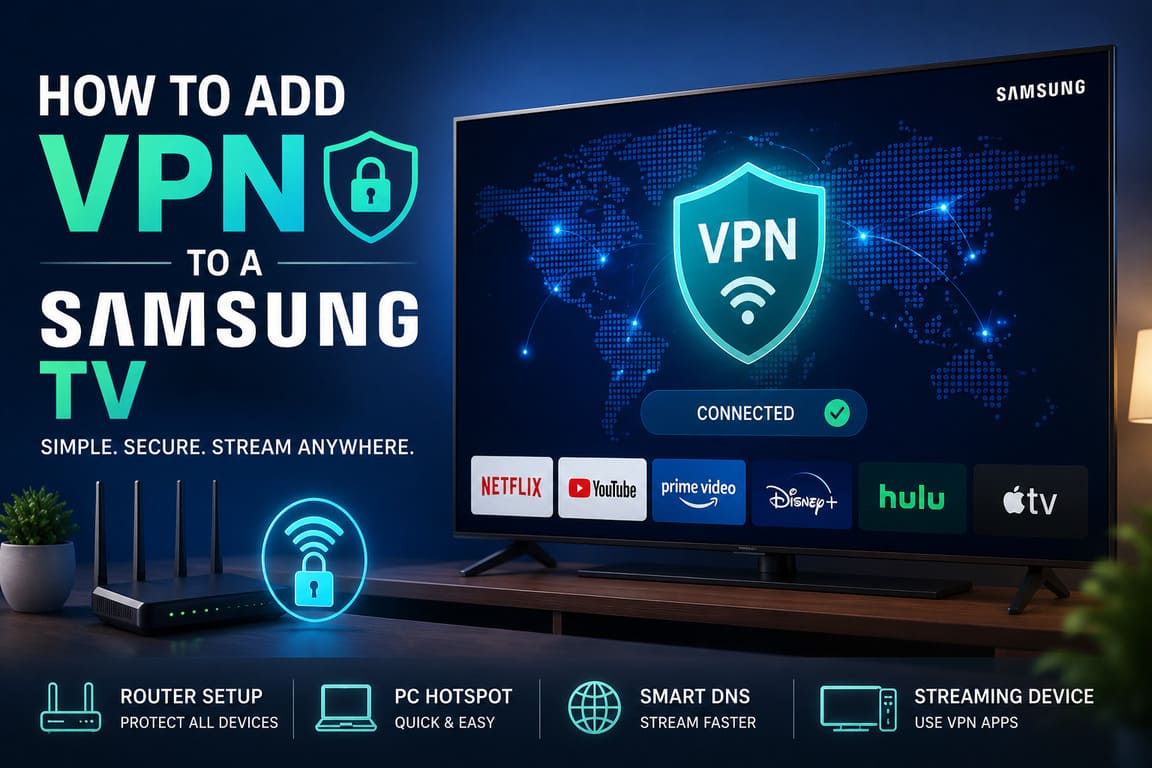
If you want to add a VPN to a Samsung TV, the first thing to know is this: most Samsung Smart TVs use Tizen OS, and Tizen usually does not support native VPN apps. Samsung also states that only apps available in the TV’s app store can be installed. That is why the most reliable ways to use a VPN on a Samsung TV are: setting it up on your router, sharing a VPN from a Windows PC, or using Smart DNS if your provider offers it.
A good Samsung TV VPN setup is practical for two reasons: privacy and smoother streaming management. Streaming now accounts for 44.8% of total TV viewing in the U.S., up 71% since May 2021, which shows how important connected TV use has become.
Quick answer
The best way to add a VPN to a Samsung TV is to install the VPN on your router.
The easiest temporary way is to share a VPN from a Windows PC hotspot.
The fastest streaming-only way is Smart DNS, but it does not encrypt your traffic.
Best methods to add VPN to a Samsung TV
| Method | Works on Samsung Tizen TVs | Encryption | Difficulty | Best for | Main drawback |
|---|---|---|---|---|---|
| VPN on router | Yes | Yes | Medium/High | Full-home protection, best long-term setup | Router must support VPN |
| Windows hotspot sharing | Yes | Yes | Medium | Quick setup without changing router | PC must stay on |
| Smart DNS | Yes | No | Easy | Fast streaming setup | No VPN-level privacy |
| Fire TV Stick / Android TV box with VPN app | Yes, through external device | Yes | Easy | People who want a direct app interface | Requires extra hardware |
What you need before you start
- A Samsung Smart TV connected to Wi-Fi or Ethernet
- A VPN service that supports router setup, hotspot sharing, or Smart DNS
- Access to your router settings or a Windows PC
- About 10 to 20 minutes for setup
Method 1: Use a VPN router — the best professional setup
This is the most complete method. When the VPN runs on your router, your Samsung TV uses the VPN automatically every time it connects to that network. Major VPN providers list router setup as a recommended option for Samsung TVs.
Steps
- Check whether your router supports VPN client mode.
Look for OpenVPN, WireGuard, or built-in VPN client options in the router admin panel. - Log in to your router dashboard.
This is usually done in a browser by entering the router IP address. - Open the VPN section.
Every router brand is different, but the section is often called VPN, Advanced, WAN, or Internet. - Enter the VPN details from your provider.
Use the server address, username, password, certificates, or config files your VPN service provides. - Connect the router to the VPN server.
- Connect your Samsung TV to that router.
Use Wi-Fi or Ethernet. - Test a streaming app and confirm the connection works.
Why this method is best
- Protects the TV without installing anything on the TV
- Can protect other devices in the home too
- Works every time the TV goes online
Watch out for
- Not every ISP router supports VPN
- Speeds may drop if the router hardware is weak
- Setup menus vary by router brand
Pro tip: If your ISP router is locked down, use a second VPN-capable router behind it.
Method 2: Share a VPN from a Windows PC
If you do not want to change router settings, use a Windows PC as a VPN hotspot. NordVPN and Surfshark both document VPN-sharing methods for TVs and other devices that do not support VPN apps directly.
Steps
- Install the VPN app on your Windows PC.
- Connect the PC to a VPN server.
- Turn on Mobile Hotspot in Windows.
- Share the VPN-connected internet connection.
- Connect the Samsung TV to that hotspot Wi-Fi.
- Open an app on the TV and test playback.
Best use case
This is a smart choice if you:
- rent your router,
- cannot access router settings,
- only need the VPN on the TV from time to time.
Downsides
- Your PC must stay powered on
- Wi-Fi sharing can be less stable than router setup
- It is not as clean as a full router solution
Method 3: Use Smart DNS on your Samsung TV
Smart DNS is easier than router setup, but it is important to understand what it does. ExpressVPN states that its MediaStreamer service is a DNS-based tool for devices that do not natively support VPNs, and it does not provide the privacy and security benefits of a VPN. It also says you cannot change locations with MediaStreamer the same way you would with a full VPN.
When Smart DNS makes sense
Use Smart DNS if:
- you mainly care about streaming setup,
- you want a simple TV-side configuration,
- you do not need encryption on the TV connection.
Samsung TV DNS path
Samsung support shows that you can manually change DNS settings on the TV through the network menu. The path is essentially: Home > Settings > General/Connection > Network Status > IP Settings > DNS Setting > Enter Manually.
Steps
- Get the DNS addresses from your VPN provider.
- On the TV, open Network Status.
- Open IP Settings.
- Choose DNS Setting.
- Select Enter Manually.
- Type the DNS address from your provider.
- Save and test the connection.
Important warning
Smart DNS is not full VPN protection. If privacy is your main goal, use a router VPN instead.
Method 4: Use a streaming device with a VPN app
Another clean option is to connect a Fire TV Stick or Android TV box to your Samsung TV and install the VPN app on that device. Surfshark explicitly recommends this as an alternative for TVs without native VPN app support.
Why people choose this method
- Easy app-based control
- No router changes
- Fast to set up
- Good if you already own the device
Downside
The VPN protects the streaming device, not the Samsung TV system itself.
Professional setup guide: which option should you choose?
Choose router VPN if:
- you want the best all-around solution,
- you want encryption,
- you want the TV to stay protected all the time.
Choose Windows hotspot if:
- you want a fast workaround,
- you do not control the router,
- you only need the VPN sometimes.
Choose Smart DNS if:
- you want the easiest TV-side setup,
- you only care about supported streaming access,
- privacy is not your main concern.
Choose an external streaming device if:
- you want a normal VPN app interface on the big screen,
- you do not want to touch router settings,
- you are fine using extra hardware.
Common mistakes to avoid
- Trying to install a VPN app directly from the Samsung app store
Most Samsung TVs do not support this approach. - Using Smart DNS when you actually need encryption
Smart DNS is not the same as a VPN. - Using a weak or ISP-locked router
Router performance matters for smooth streaming. - Forgetting to test the connection after setup
Always open a streaming app and confirm the TV is online. - Leaving out account or region issues
Some apps depend on account settings, not just network settings.
Statistics that matter
- Streaming reached 44.8% of all TV viewing in May 2025, the highest share on record.
- Streaming usage was up 71% compared with May 2021.
- FAST services such as PlutoTV, Roku Channel, and Tubi combined for 5.7% of TV viewing in May 2025.
- YouTube alone accounted for 12.5% of all TV viewing in May 2025.
These numbers matter because Samsung TV VPN setups are no longer a niche need. Connected TVs are now a major part of how people watch content.
Text infographic
SAMSUNG TV + VPN: SIMPLE DECISION MAP

Samsung TV
   │
   ├── Can you install a VPN app directly?
   │        └── Usually no on Tizen TVs
   │
   ├── Want full privacy + easiest daily use?
   │        └── Use a VPN router  ← BEST OVERALL
   │
   ├── No router access?
   │        └── Share VPN from Windows PC hotspot
   │
   ├── Want the fastest simple setup for streaming?
   │        └── Use Smart DNS  ← NO ENCRYPTION
   │
   └── Want a real VPN app on TV screen?
            └── Use Fire TV Stick / Android TV box
FAQ
Can I install a VPN directly on my Samsung Smart TV?
Usually, no. Most Samsung Smart TVs run Tizen OS, and major VPN providers recommend router, hotspot, or DNS-based workarounds instead of direct app installation. Samsung also says only apps available in its app store can be installed.
What is the best way to add a VPN to a Samsung TV?
The best long-term method is a VPN router. It gives full-time protection and works for the TV without needing a separate app on the TV itself.
Is Smart DNS the same as a VPN?
No. Smart DNS can help with some streaming setups, but it does not provide VPN-level encryption or privacy.
Will a VPN slow down my Samsung TV?
It can reduce speed a little, especially on weak routers or distant servers. In practice, a good router and a nearby server usually give the best results.
Can I use a free VPN on a Samsung TV?
You can try, but it is usually a poor choice for TV streaming because free services often limit speed, bandwidth, and support. Paid services are generally more stable for router or hotspot setups.
What if my router does not support VPN?
Use a Windows hotspot method or connect a Fire TV Stick / Android TV box that supports VPN apps.
Is using a VPN on a TV legal?
In many countries, yes. But you should still follow local laws and the terms of the services you use.
Final takeaway
If you want the simplest professional advice, remember this:
- Use a router VPN for the best full-time setup.
- Use a Windows hotspot if you need a quick workaround.
- Use Smart DNS only if you want easy streaming setup and do not need encryption.
- Use an external streaming device if you want a direct VPN app experience.
For most people, the router method is the best balance of privacy, stability, and ease after setup.